Thanks Ken!
I read the section regarding the COPY_GRAPHICS_REGION@ many times in the on-line manual (which also you pasted in your previous post), but due to its vague formulation I did not understand it as a whole, since I did not know what is the real meaning of DX,DY and SX,SY values. Now, thanks to your explanation I know that he values DX,DY,SX,SY represent margins.
Nevertheless, I still have couple of questions. Please – have a look at the picture below (outlined a pixel coordinate system):
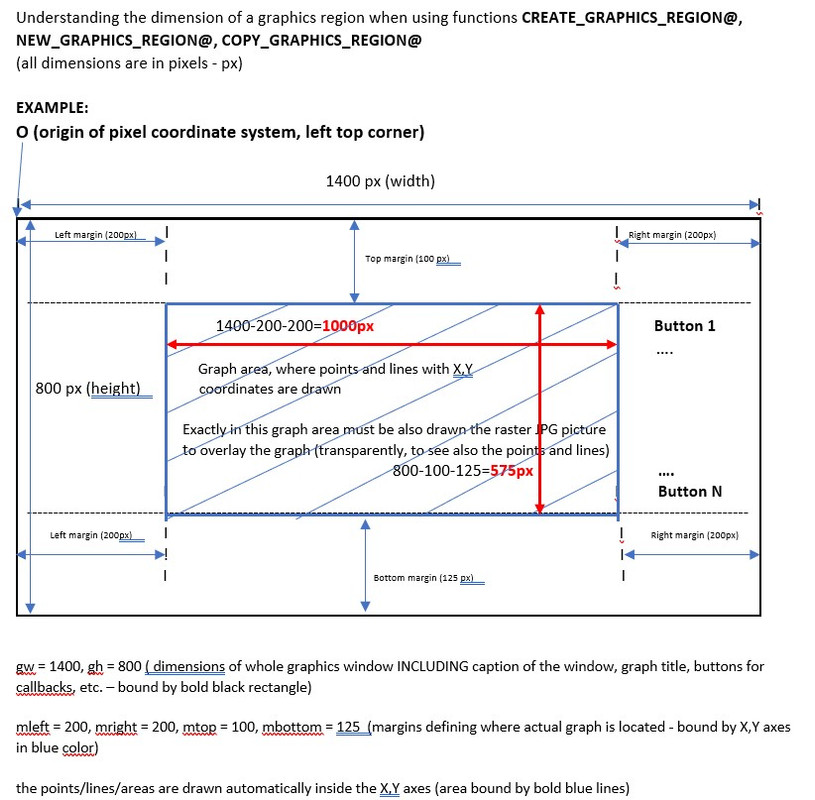
If my understanding (imagination) of a pixel coordinate system pictured above is correct (if not, correct me) the questions are:
A)
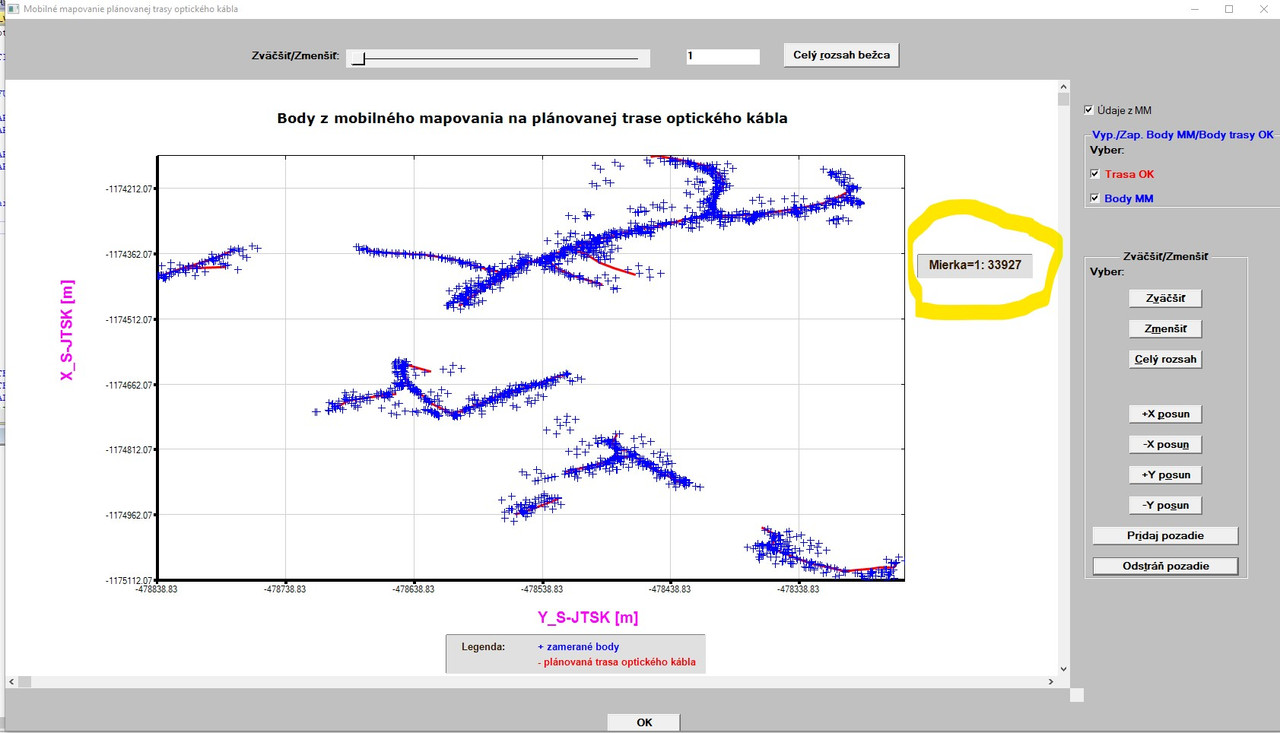
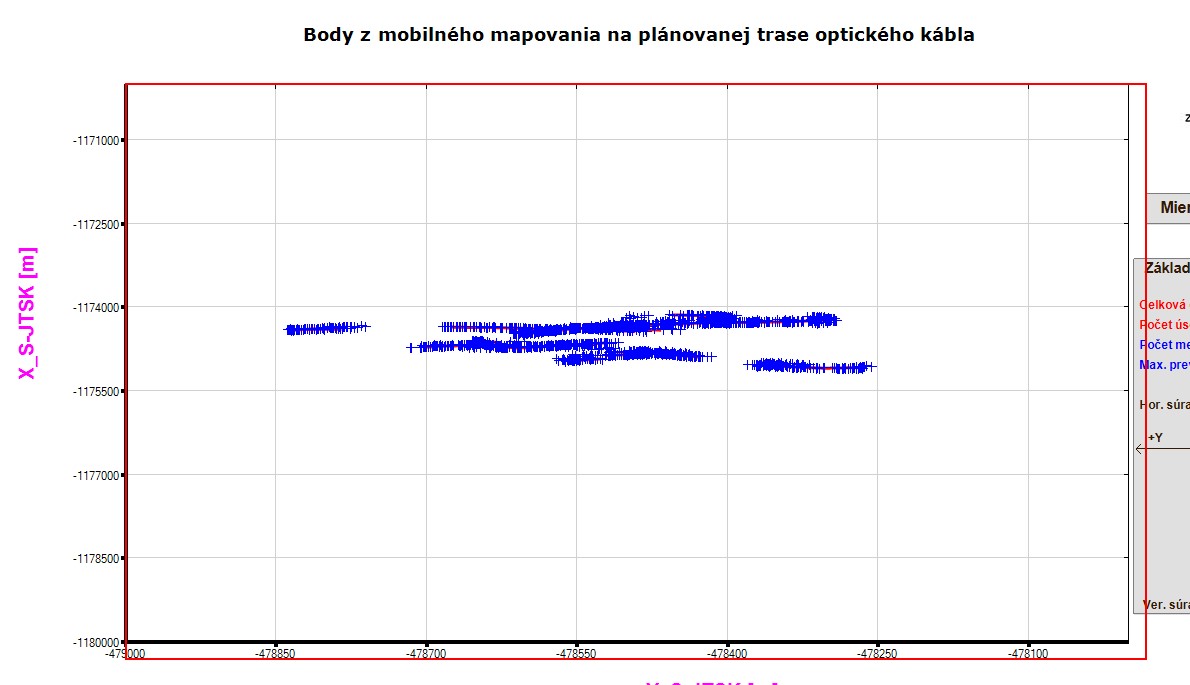
I defined the whole window area (DW,DH dimensions: 1400x800) to accommodate all texts, buttons, titles, caption, graphs but with NO margin option for the %PL (I did not use the option margin at all). The graph itself, where points and lines are drawn, was automatically created by %PL and bound by X,Y axes. This graph is smaller than 1400x800 window.
**How can I automatically (by program or an option in %PL) detect the pixel coordinates of at least one corner of the graph (say – top left) bound by X,Y axes, where the input data (points) are drawn? **
The procedure with GUESSING the offsets is not usable.
B)
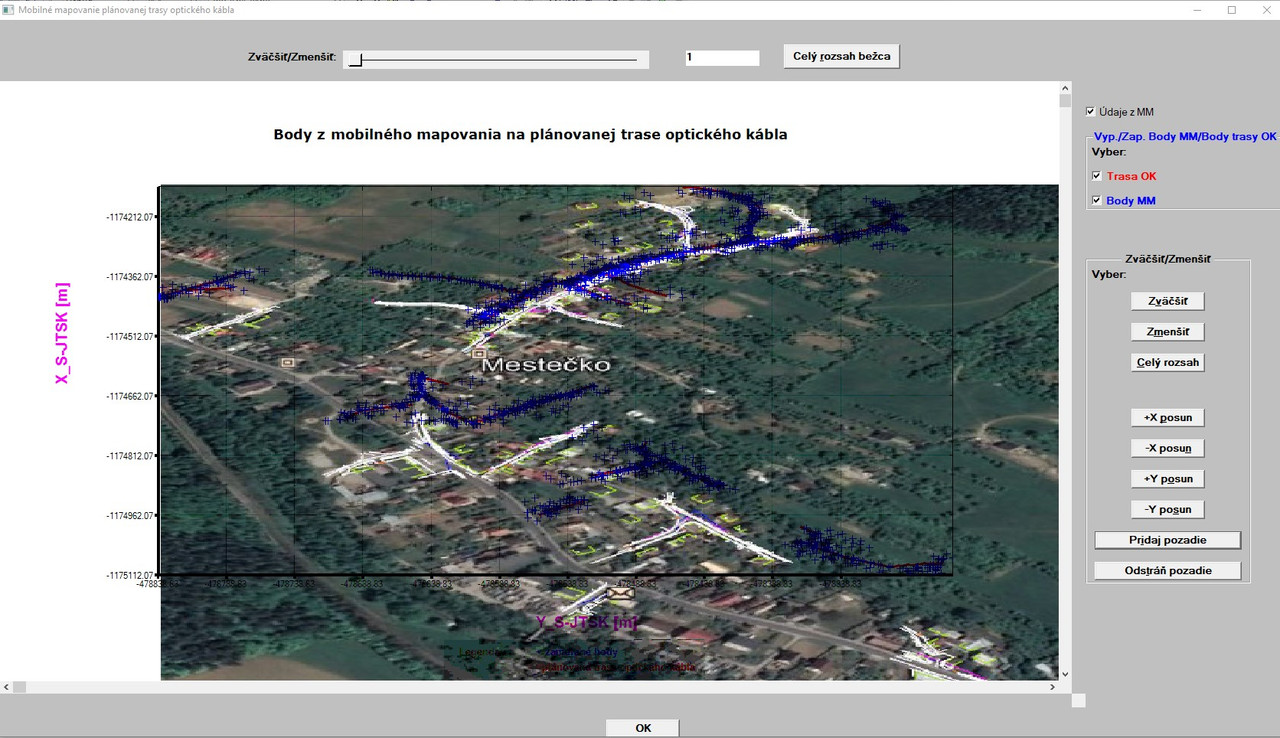
When I loaded in the raster jpg image, it was placed within whole white area of the graph (overlaying graph title, X,Y captions and legend). This was – of coarse – not wanted, so I started to try to lower the image dimensions. Unfortunately, I did it manually, tentatively and in few iterations (I started to use the DX, DY values (margins) with 120, 80 – it did not fit, then I used 150, 90, it did not fit and finally – I guessed!!! the correct DX, DY values (200,200), where the top left corner of the vector graphs coincided with top-left corner of the loaded raster image. But this was all, no other dimension coincided, so I posted my questions in my previous post. Based on your answer, I used the MARGIN option for %PL and the result can be seen below:
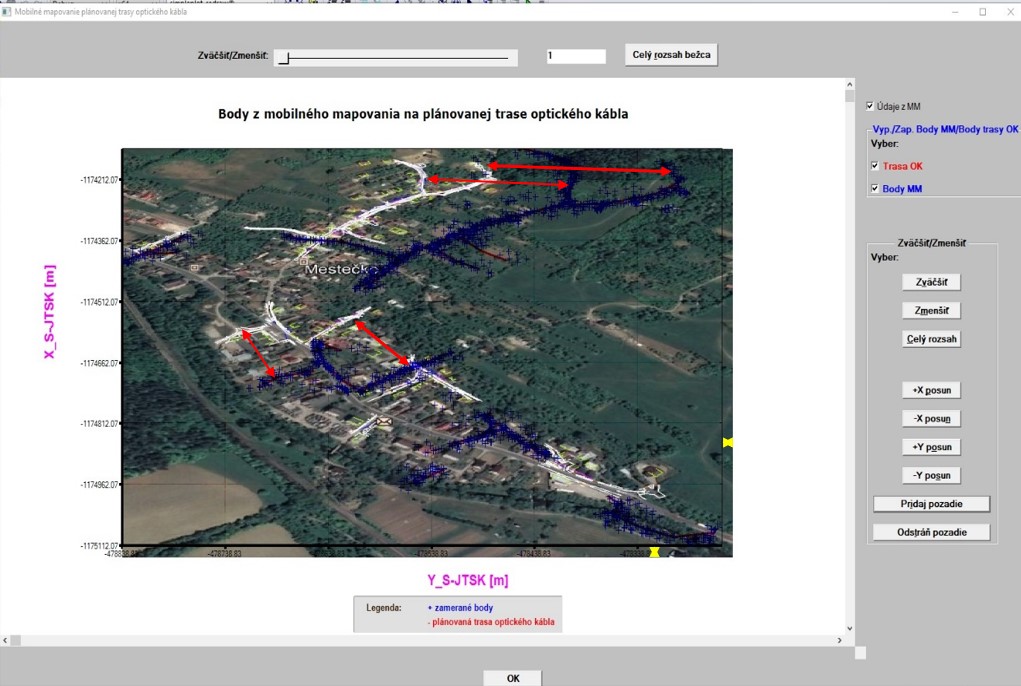
I used the code (for adjusting raster image to vector graph):
i = COPY_GRAPHICS_REGION@(handle_pl_OK, 200, 100, gw-mleft-mright, gh-mtop-mbottom,  &
                             1001,  0, 0, WIDTH_RASTER, HEIGHT_RASTER, 8913094)
It nearly fits, although not 100% (see two yellow lines in the picture to the bottom right). I could lower it in both directions by value 10 (it would then fit quite good) but then there remain 2 black strips (horizontally and vertically).
The question is:
Why – when using GW-MLEFT-MRIGHT and GH-MTOP-MBOTTOM – the image does not coincide exactly to the graph within X,Y bounds?
C)
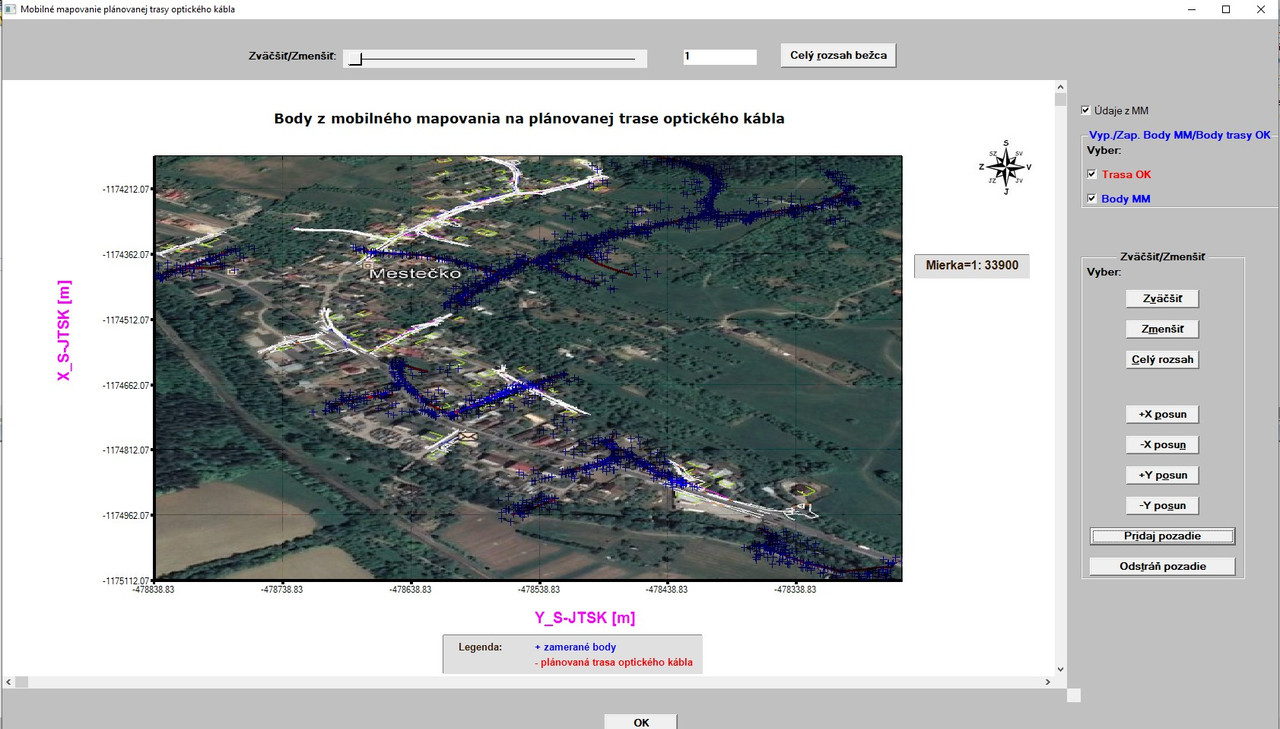
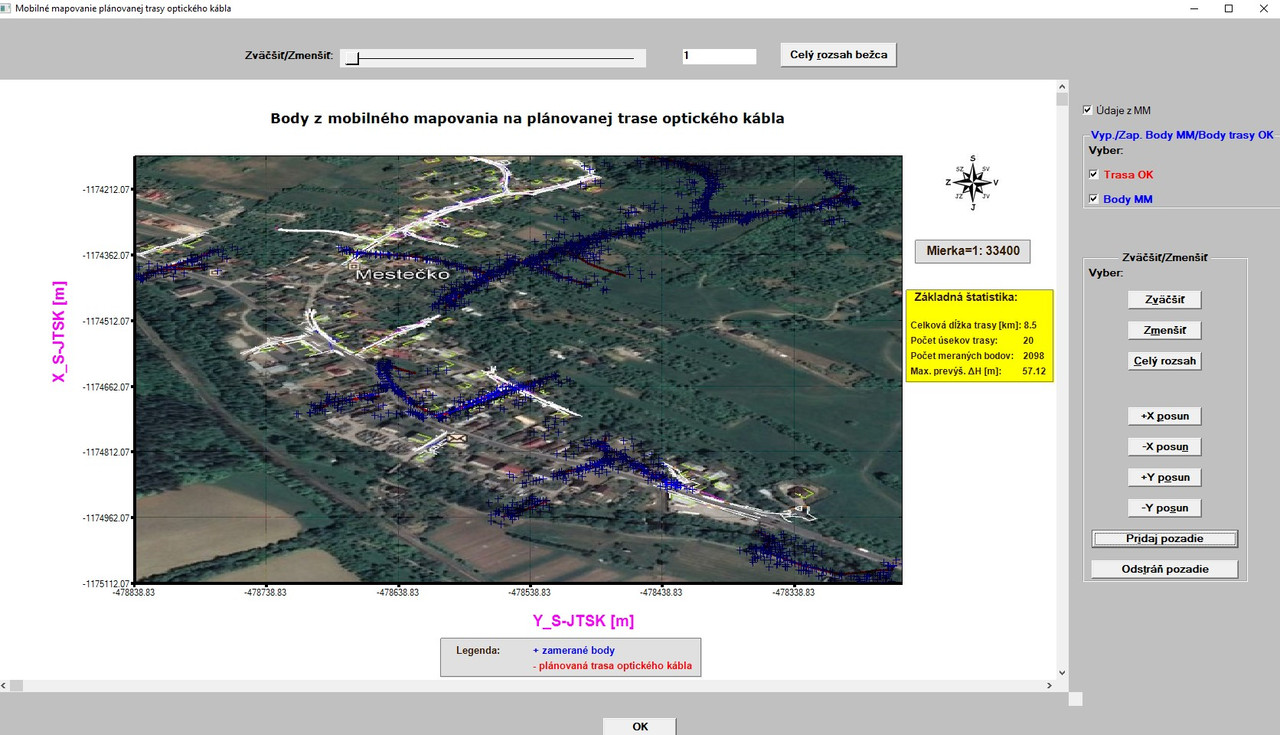
Moreover, although the image was created by me a few months ago, at that time with no intention to use it for such purposes like now, you can see in the picture above (see red lines with arrows) very big displacement of the data when comparing them to the image background). I can investigate how could I create the IMAGE as a raster with no association to real geodetic coordinates in my mobile mapping processing software (where all is treated exclusively and ONLY in real geodetic coordinates and in real geodetic coordinate system), however – I am afraid that this way to overlay the vector data (with real geodetic coordinates) in the graph with an un-georeferenced image (with no coordinate association) is the way to nowhere, impassable and closed.
Nevertheless, it would be great to introduce an internal function like GET_DATA_SCALE@ which would output the graph scale (which scale in the graph is used for the drawn data by %PL. All maps have a scale like: 1:500, 1:1000, 1:10000, … Or to have a possibility to specify a particular scale info to %PL (I do not mean current scale options for %PL like SCALE=LINEAR,… I mean to tell %PL to draw all input data in linear scale – let say – 1:1000, it means SCALE=1000 or SCALE = 500, …).