Silverfrost Forums

Welcome to our forums

ClearWin+ Visual

6 Feb 2021 9:10 #27052

Hello to everybody!

I am back after more than 6 months of non-programming (we were busy with integrating different type of sensors like echo sounders, GNSS receiver, velocity sensors, ... on a measuring boat for bathymetry purposes).

Now, I need to create a quite simple program for a basic data presentation coming from mobile mapping. I decided to use the 'Visual' feature of ClearWin+. And at the very beginning I am stuck with a specific problem relating to slovakian punctuation (like accents and wedges).

Here is the beginning of the main program to access the design mode:

winapp

program mob_map_info
use clrwin
implicit none
integer iw

iw = winio@('%~wi',100) 

!
! umoznenie pisania diakritiky v texte
!
!    call ENABLE_UTF8@(1)


!    iw=winio@('%ww[thin_border]&')
!    iw=winio@('%ca[Informácie z mobilného mapovania        © AGIS Slovakia, spol. s r. o., www.agis.sk]')

end program mob_map_info

resources
1 layout 'Mob_Map_Info.rcx'

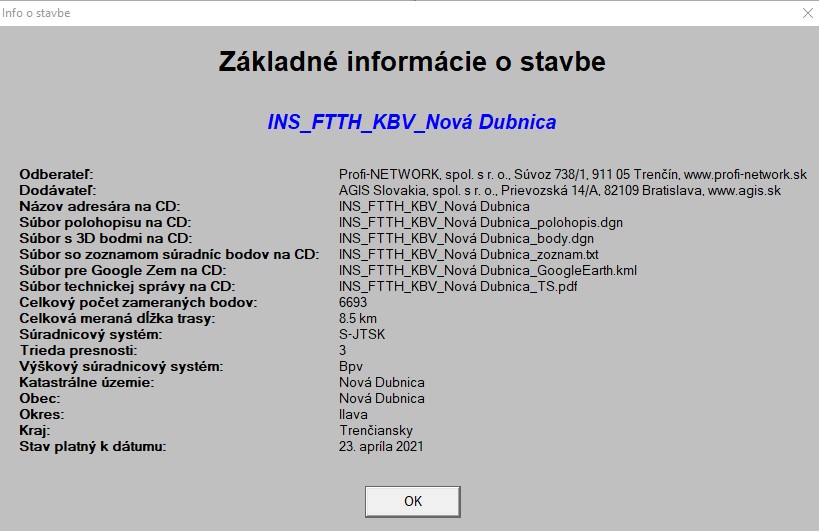
When I do not use the call to ENABLE_UTF8@(1) (to enable correct punctuation), the result of design mode when inserting there a text string is OK, see picture below:

[ https://i.postimg.cc/zXRMBcct/OK-text-punctuation.jpg

Then, I removed the comments in the program above along with the tilde sign (~) in front of %wi to include a caption to the designed window, since the caption contains some special characters. I included the call to the function ENABLE_UTF8@(1) as follows and the build the executable:

winapp

program mob_map_info
use clrwin
implicit none
integer iw

iw = winio@('%wi&',100) 

!
! umoznenie pisania diakritiky v texte
!
   call ENABLE_UTF8@(1)


   iw=winio@('%ww[thin_border]&')
   iw=winio@('%ca[Informácie z mobilného mapovania        © AGIS Slovakia, spol. s r. o., www.agis.sk]')

end program mob_map_info

resources
1 layout 'Mob_Map_Info.rcx'

After running the program, the result can be seen here:

[url=https://postimages.org/]https://i.postimg.cc/gJb1yC0J/bad-text.jpg

As can be seen in the picture above, some special characters in the caption are not displayed correctly (the red underlined part of text).

So, I moved the call to ENABLE_UTF8@(1) in front of %wi format code and the effect can be seen below:

[

[url=https://postimages.org/]https://i.postimg.cc/rsfZDJwy/bad-text-in-design.jpg ](

[url=https://postimages.org/]https://i.postimg.cc/rsfZDJwy/bad-text-in-design.jpg )

This time, the text in caption is OK, but some special characters in design window (red underlined) are corrupted.

Finally, I have a very strange problem. When I use the USE CLRWIN or USE MSWIN command, compiler reports me constantly the following:

[url=https://postimages.org/]https://i.postimg.cc/qMkTDJhy/USE-CLRWIN-PROBLEM.jpg ](https://postimages.org/)
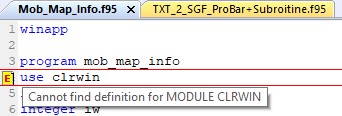
When I build the program, everything is OK (no compiler errors) and the program runs.

Any idea where am i doing some mistake(s)?

Thanks in advance for your valuable advises!

Martin

6 Feb 2021 9:32 #27053

Martin

The FTN95 error report can be ignored. It is because FTN95 can't see the module when when doing the interactive compiling. You could switch off the feature from the Settings dialog on the Tools menu.

Can you zip up the program and resource file and put the zip file on Dropbox or somewhere like that. Then I can work out what is going wrong with the UTF8 characters

7 Feb 2021 2:09 #27054

Thanks Paul for your quick response!

The program is very small (I am just at the very beginning) and here is the link where to download f95 and rcx files (zipped):

http://uschovna.zoznam.sk/download?code=1342689164551-NGIWyHZrutxBfXrGnTBo

Martin

7 Feb 2021 5:37 #27055

Paul,

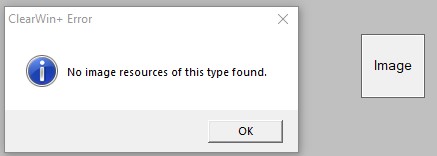
still one question. Where should be placed the resource files (BMP, ICO, JPG, ...). I defined full path (after RESOURCES directive after the end statement) where they reside on my PC and I get the error message in the design mode, when I try to insert a picture/image/icon: NO IMAGE RESOURCES OF THIS TYPE FOUND.

Note: In the PLATO´s Project/Properties/Miscellaneous the option SRC compiler is unchecked. Which parameters should I specify there?

Thanks

Martin

9 Feb 2021 12:16 #27072

Martin

The designer does not work with UTF8 characters. I will make a note that this feature needs to be added.

You can use the full path for an image but the resource compiler requires a double backslash as in

myicon ICON '\\techsupport\\wmdm.ico'

When designing,

  1. Right click and select 'New Picture' etc.
  2. Select the image with Ctrl+click (the cursor changes to a hand).
  3. Right click and select Properties.
  4. Find and select 'myicon' from the list.
9 Feb 2021 1:27 #27073

Thanks Paul for the information!

It will look a little bit strange to have there (when using designer) the text or buttons with slovak text without accents and wedges.

Although I can program it from scratch classically, where no problem with UTF8 characters occurs, I feel that the designer (when improved) will be a great tool to speed up and make designing of the windows more straightforward.

I look forward to the new release where this feature will be implemented. Thanks again!

Still back to the RESOURCES directive.

My code looks like follows:

...
...
end program mob_map
resources
agis BITMAP agis.bmp
agis ICON   agis.ico
agis IMAGE  agis.jpg

All three files are in the same place on the PC as source code (in a Project folder). It does not work (the same error message as stated in my previous post).

In the online help for RESOURCES IN FTN95 is written that:

In order to use the RESOURCES directive, the SRC command must be available on the PATH. All the resources for a program must be supplied in one place.

I had a look at the FVARS.bat file and it originally looked like this:

SET PATH=C:\Windows\Microsoft.NET\Framework\v2.0.50727\;%PATH% SET F95INCLUDE=D:\Program Files (x86)\Silverfrost\FTN95\Include SET MOD_PATH=D:\Program Files (x86)\Silverfrost\FTN95\Include

To be sure, I also manually added the 4th line to the FVARS.BAT where src.exe resides as follows: SET PATH=D:\Program Files (x86)\Silverfrost\FTN95\

Still have the same error message. Where is the problem? (all three images - ICO/BMP/JPG were created in Adobe package and after their creating I put all three files to the project folder, where source code resides).

Thanks for help!

Martin

9 Feb 2021 2:49 #27074

Martin

Each image must have its own identifier as in...

end program mob_map
resources
agis1 BITMAP agis.bmp
agis2 ICON   agis.ico
agis3 IMAGE  agis.jpg
9 Feb 2021 10:40 #27075

Thanks Paul!

I tried it - but it simply does not work, always the same ClearWin+ error message reported earlier although the compiler creates the file called SRCTEMP@.RC which contains exactly the same instructions like in the RESOURCES command.

I have no idea where is the problem, so I will use the %BM instead designer since I need some graphics in the empty area between the text and three yellow buttons (see picture below):

https://i.postimg.cc/B6R1Fpxd/Normalny-EXE.jpg

Here are a few remarks for your consideration when you will improve the designer:

  1. It would be great to include in the designer the UNDO and REDO button - it will help greatly.

  2. I included the call to ENABLE_UTF8@(1) in my call-back for the middle yellow button (see picture above) and it works with no distortion when I press the button as can be seen below:

https://i.postimg.cc/L6m24fPD/Stredn-button.jpg

  1. I observed an interesting thing: when I run the program in the design mode (with tilde in front of %WI) using the external call back with UTF8 enabled, the three yellow button are CLEARLY yellow (see picture below):

https://i.postimg.cc/N0sNC6Ky/zlte-buttony.jpg

When I remove the tilde and create the exe, the three buttons change slightly their color (see first picture) and their bottom half is slightly greyed out.

  1. It would be great to include for every item in the designer a brief interactive help.

Now, I am going to activate (write a call back) for the third button for the graphics using the %PL and your excellent PARAMS and LOCKED options.

I also have some additional suggestions for the %PL enhancement, but I will discuss it later, after the graphics button will work with my field data as I want.

BTW - If you would have an additional idea, why JPG/BMP/ICO pictures do not work in the designer with me, I would be very thankful to you. To be honest, it annoys me, since I am great fan of your designer and see in it great potential (there would be no need for the 3rd party add-ons like Winteracter)!

Thanks again!

10 Feb 2021 4:47 (Edited: 10 Feb 2021 7:58) #27076

Martin Next time please use Dropbox or OneDrive. Your link started other link with some video running in the browser without user consent. Same way owners of content may start any virus as the site owners seems don't care. Could be a ones per 10 years coincidence, but then all my windows went crazy dancing abruptly getting full windows size, virus scan did not finish properly, and i was forced to close all my work, download virus updates, scan again and reboot. I think policy of this site has to forbid any hosting sites besides major ones

10 Feb 2021 7:27 #27077

Martin

Adding images is demonstrated in the Youtube video...

https://www.youtube.com/watch?v=JnhX4uV92Pg&t=1s

24 minutes from the start.

This still works for me. The only difference is that a refresh is no longer needed. The images appear automatically after closing the Properties dialog.

The call to ENABLE_UTF8@(1) should be placed in the main program before the first call to winio@.

11 Feb 2021 11:28 #27081

Paul,

I watched your video several times before I put this topic. I did all exactly as demonstrated in your video with no success (except standard icons, they work).

So, brief summary:

It is for release: https://i.postimg.cc/Gt32XM7m/release.jpg

Now, my resource looks like this:

https://i.postimg.cc/3wbn86GP/source.jpg

And when I am in the designer and want to put the image there, get the following after pressing PROPERTIES (for me - for unknown reasons): https://i.postimg.cc/h4CPS1ZV/Clear-Win-error.jpg

Since it did not work for me, I used %IM and loaded the required image from an external file.

Originally - I put the CALL ENABLE_UTF8@(1) in the main program, it did not work correctly, since it either distorted the UTF8 characters in the text of the designer or in the caption (depending where the call was placed in the main program). You also stated that UTF8 characters do not work with the designer.

Therefore I put the call to a call-back and it works.

Best wishes!

Martin

11 Feb 2021 12:32 #27082

Martin

Which version of FTN95 are you using and what is the date of your salflibc.dll or clearwin64.dll?

I have extended the designer so that it will work when ENABLE_UTF8@(1) is called at the start of the main program. The new version will allow you to enter UNICODE strings in the Properties dialog for text and for buttons (including radio, check and group buttons). In my testing I have used Google translate to enter a phrase in English, translate it to Russian, copy to the clipboard and finally paste into the edit box of the Properties dialog.

I still can't get a failure when using images. Maybe you need later versions of the DLLs.

11 Feb 2021 1:03 #27083

Thanks Paul!

Here is the required info:

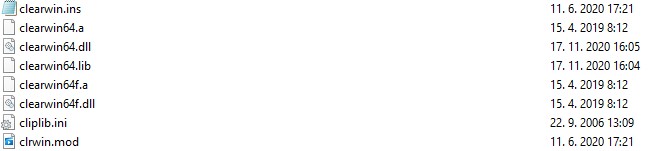
I am using FTN95 PE v8.70

Clearwin:

https://i.postimg.cc/wTK5vgsR/clearwin.jpg

SALFLIB:

https://i.postimg.cc/GpZtQhRk/Salford-lib.jpg

Martin

11 Feb 2021 7:04 #27084

Martin

  1. The call to ENABLE_UTF8@(1) should be made at the beginning of the main program, before any calls to winio@. It makes no logical sense to call it in a winio@ callback function. You can set this flag and it will make no visible difference to the display for code that does not use UTF8 characters. In other words, ASCII is a subset of UTF8.

  2. Microsoft edit boxes (that are used by ClearWin+) can receive UNICODE character strings. For these edit boxes, ClearWin+ converts from UTF8 to UNICODE for input and from UNICODE to UTF8 for output.

  3. Visual ClearWin+ can be used to design dialogs using ASCII text. Then the resulting rcx file can be manually edited to change the ASCII text to UTF8 characters. An editor like Plato can be used to input UTF8 characters but you must use the enhanced Save options when saving the file. Plato also uses UNICODE internally and converts on saving.

Please login to reply.